Category Archives: Technical Support

Free Technical Support All Over the World . Tell Your Computer Laptop Issues, Chat Connect Remotely and Get Resolution

How to Get 2000 GB SPACE IN DIGIBOXX


What is Digiboxx

DIGIBOXX is India’s first homegrown Digital Asset Management Platform, on which you can easily store and collaborate with you digital assets, like raw files, photographs, sensitive collateral, etc. It’s available on desktop, mobile and tablet

Do I need DigiBoxx  

Do you have a lot of content and have challenges keeping it organized and getting the right content to the right people? If the answer is yes, you should consider digital asset management software. Especially DigiBoxxTM, which allows you to seamlessly collaborate with your team and track your files and other digital assets across different screens.

Send files without signing up

For special emergencies like these, we have the Instashare feature – where you can share large files with anyone, anywhere by using just your email id. We do recommend you sign up though – you can have all your photos and important documents stored away securely in the cloud!

How do I put files inside DigiBoxx

It is very easy to insert your digital assets like images, videos, music files, presentations, etc., inside your Digiboxx account. 

See the Practical Experience in this video how digiboxx can be used


How to send Email as File Attachment in GMAIL


Adding email as attachment in gmail

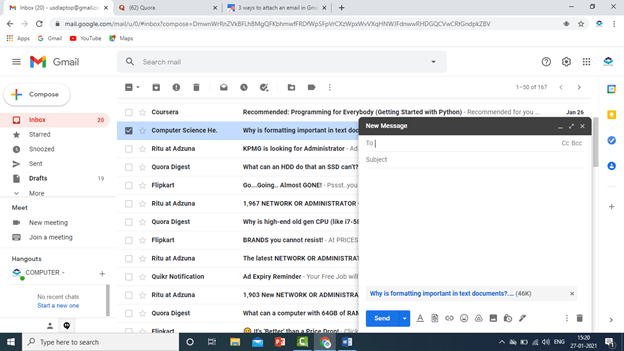
Select Email that You Want to send as attatchments

Click on Vertical three dots sign displaying on screen

Select Forward as attatchment

Write email where you want to send

Method 2 to send email as PDF attachment

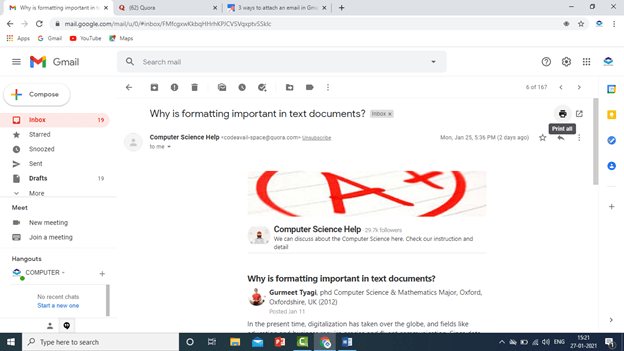
Open Email

Click on print

Select save as pdf

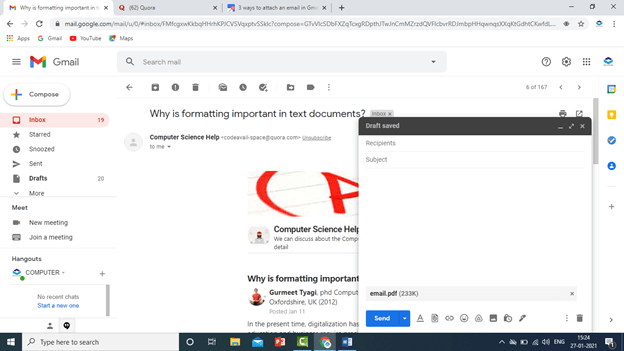
Save File

Click on Compose new email

Select Saved file and attatch email as pdf file

click send

See Practical In this Video

How to Create Mailing list in Gmail


What is mailing List

Mailing list is a list which help us to send any invitation or mail to the large no of people in just one click.

You can create a list and send mail to the list by just selecting your mailing lsit. You can send mail to 100s or more people by select one list name.

Differences between Mailing list and Group.

Main deference between both is –

If you send mail to any mailing list , Each and Every person of the list can see all the email ids where mail has been sent.

While in Group No one can see any email id. People can see only group name or nothing, all peoples email id hidden.


Step to Create Mailing List.

Login Gmail

Go to google app from the right top corner

Click on Contacts

Click create level by just clicking on create level and write name and click ok.

After creating level

Go to contact list select email by just licking on check box of email and go to level

Select level and click apply.

Your mailing list created

Now You can send email by just Selecting this Mailing list.

Also the the Practical Video How we can create.


Making Partition of Drive C Without Formatting Window


Here You will Learn the step, how to make partition if you forget to make during windows installation.

You can devide you C drive in to partition for other storage without affecting windows drive.

Let’s Start How is it possible

Step 1

Right Click On COMPUTER in Windows 7 and if you have windows 10 – right click on THIS PC option

Click On Manage

Click Disk Management

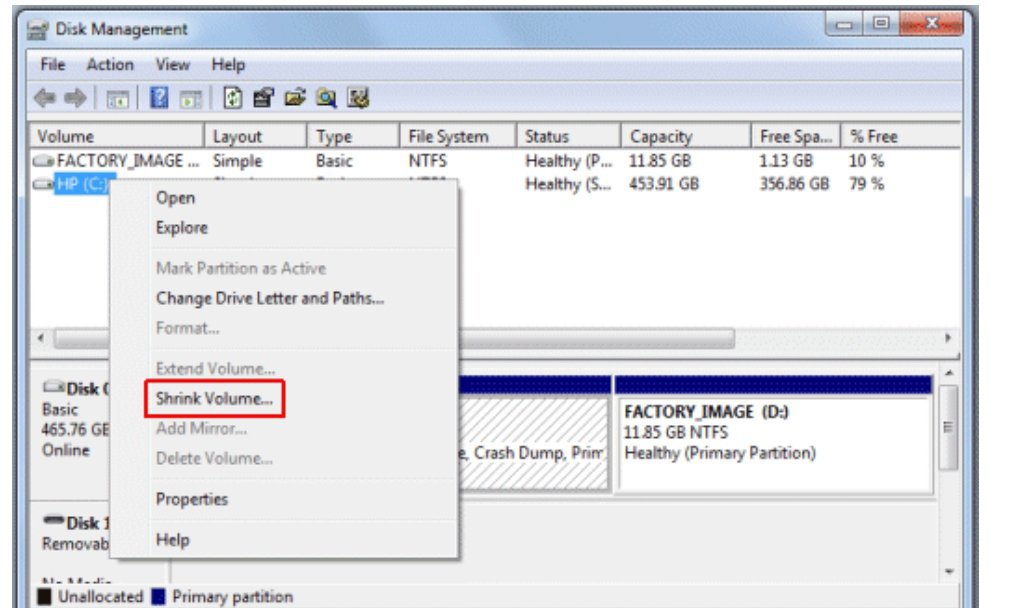
Right Click On C drive as we know here we are making partition by taking space from drive C

Shrink Volume in windows 7 or 10

Click Shrink Volume Option

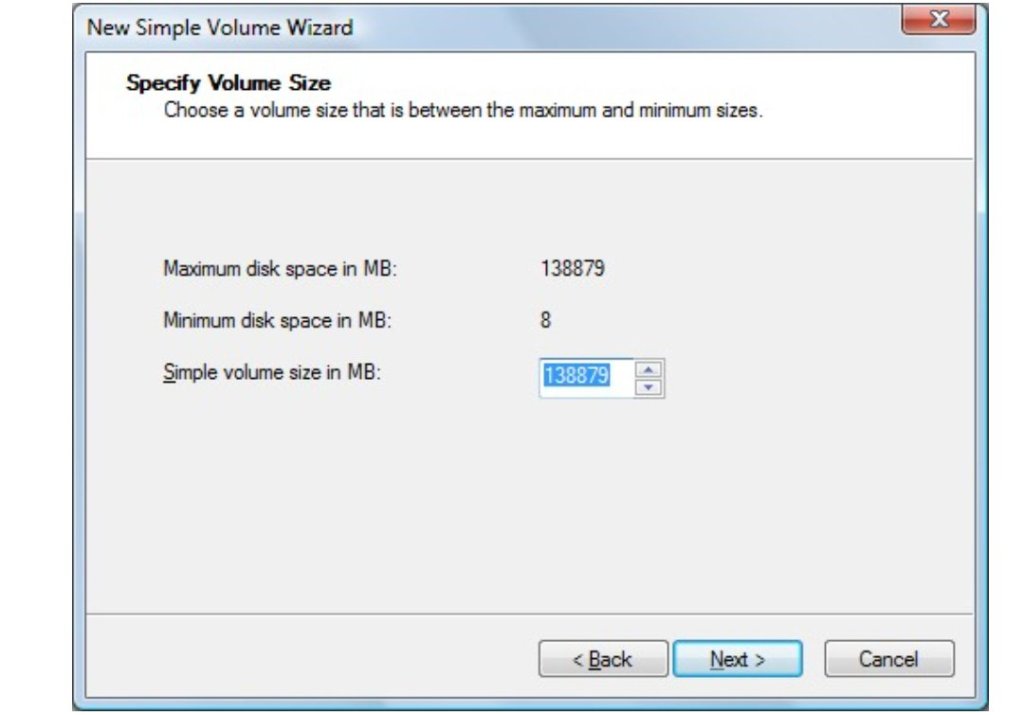
See The Available Shrink Space In second line of the below dialog box

Enter the Amount of Space in Mb (in third Line of dialog box) . This is a partition Size you are deciding

Enter the partition size from the available shrinked space shown in column II

Click On Shrink

Below dialog box displayed

Shrink C drive space to make partition without formatting windows

Click Next

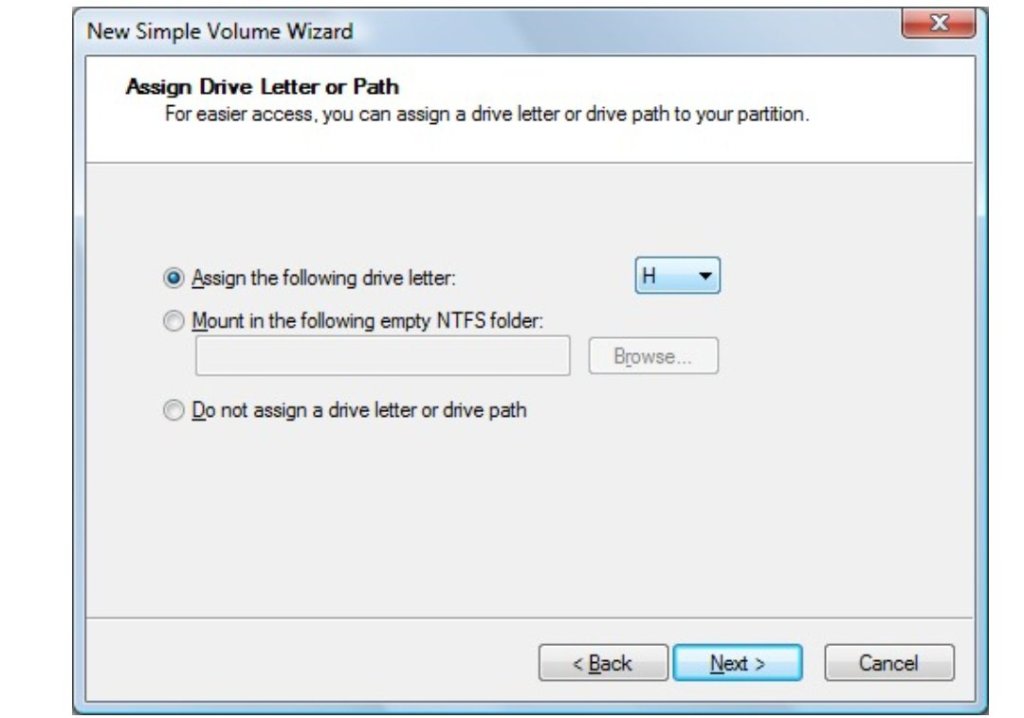
Select Drive Letter in below dialog , this is a name of you new partition. You can not select drive letter which is already available. This option automatically selected by default if you are not selecting.

Click Next

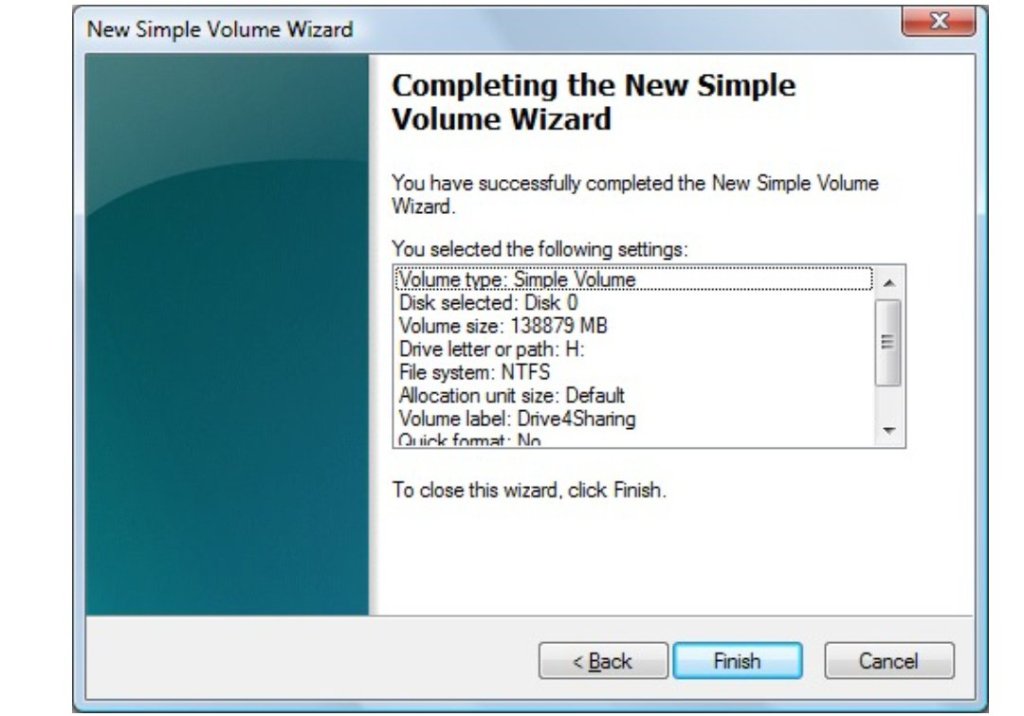
Enter Volume Level if you want to keep any text name of this drive otherwise leave blank. See in below dialog box

Tick check box of “Perform a quick Format”

Click Next

Click Finish

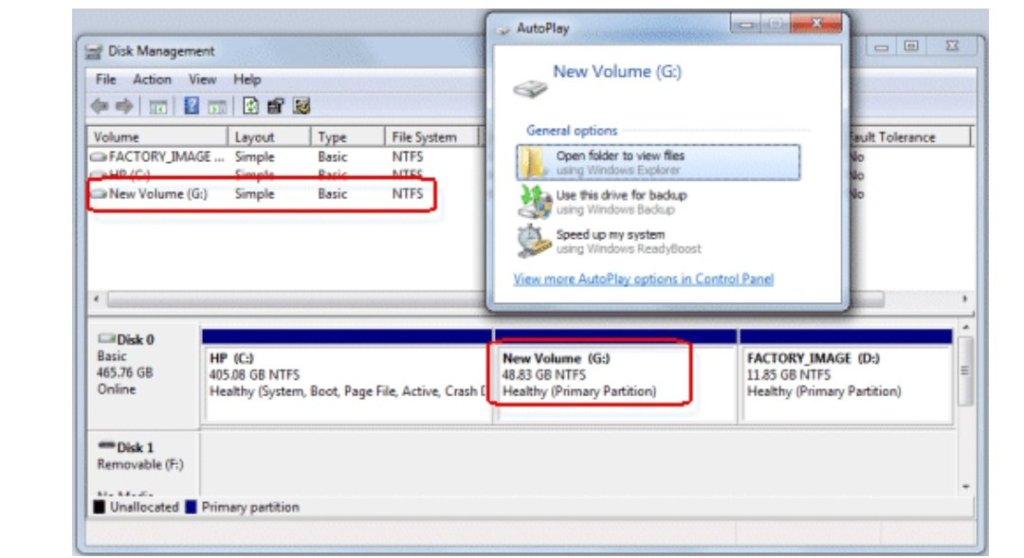
After Finish Your Created partition started formatting , see below dialog box

Your Partition Is Ready After Formatting

You Can see this in Practical Video

how to forward gmail email to another email id


How to Forward Gmail Email to another Email ID

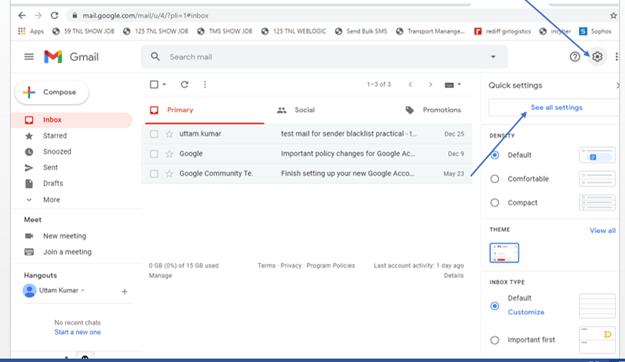
Open Gmail Account

Click Setting

Click All Setting

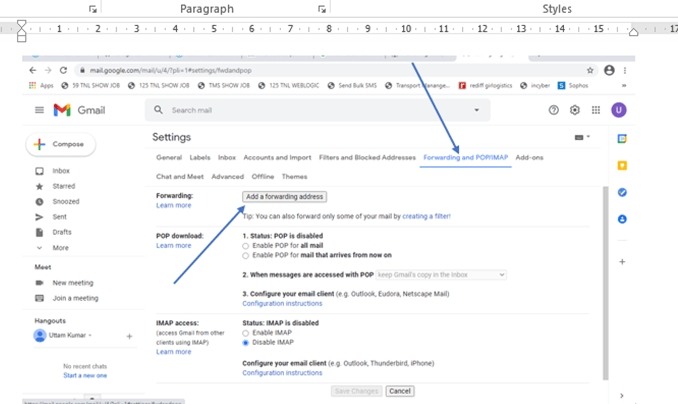
Click on Forwarding and Pop/Imap TAB

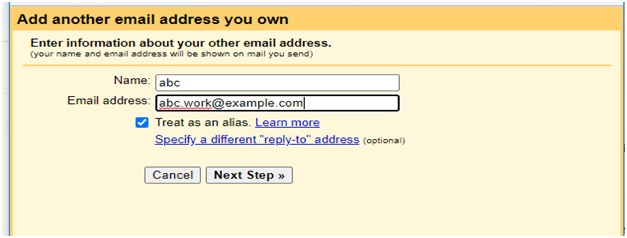
Go to Forwarding Section and Click Add a forwarding address

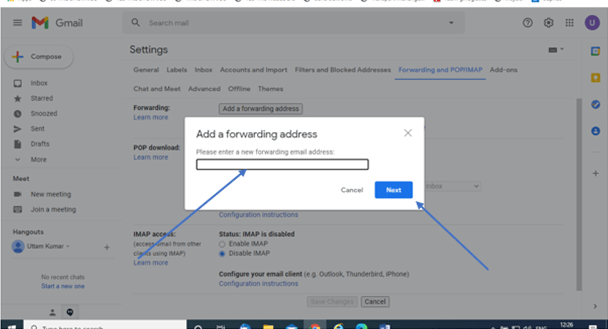
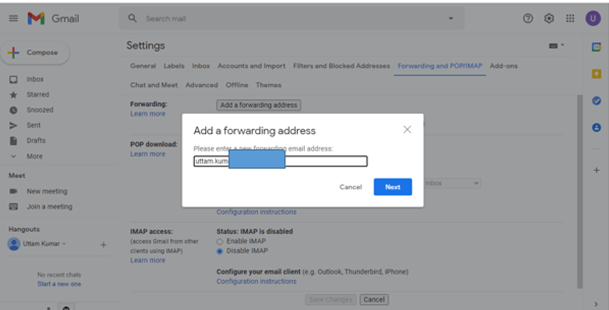
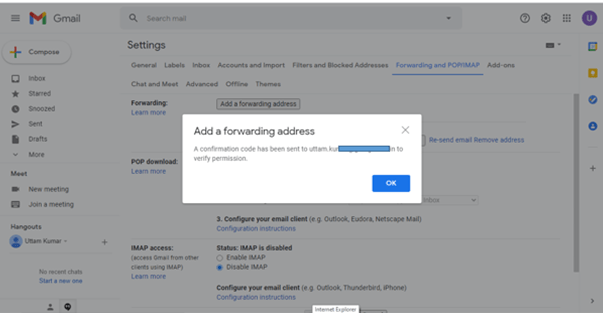
Enter Forwarding Email address and click next

after clicking on next you will see the below option

click proceed button

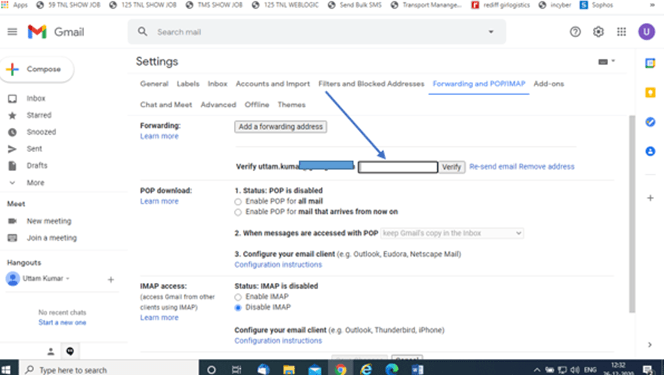
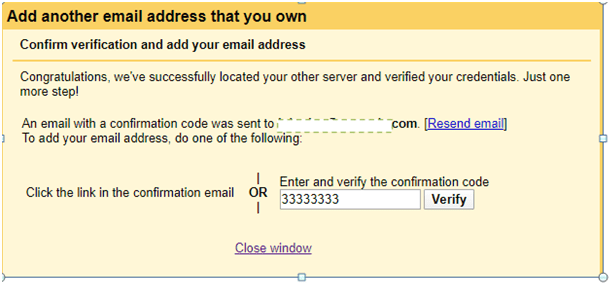
This will send verification code to your forwarded email id

Open that email inbox and get verification code

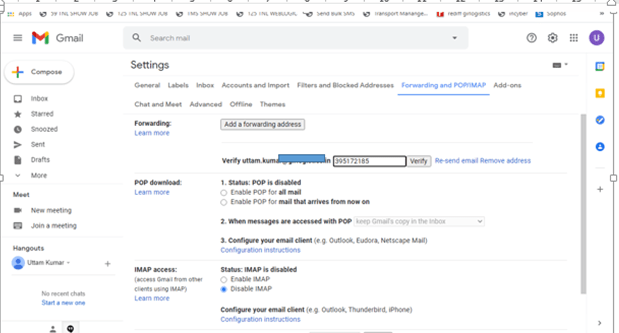
Enter Verification and and Click on Verify

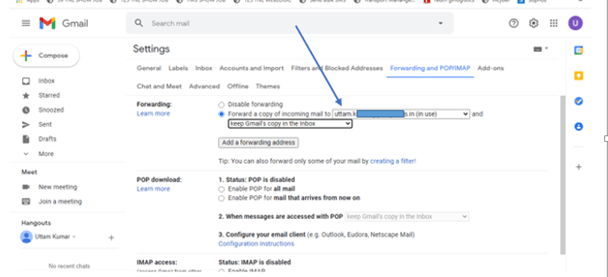
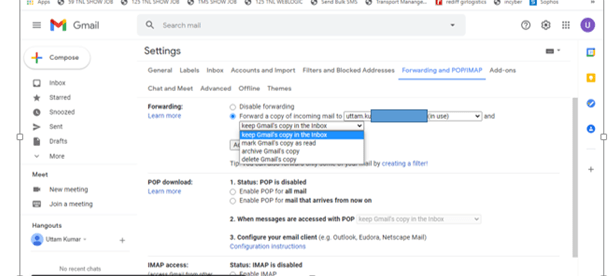
After Verification forwarder has been activated see below picture

select “orward a copy of incoming mails” ption to enable forwarder

Select Keep Gmail Copy in the inbox.(If your want to keep email in this mail box also)

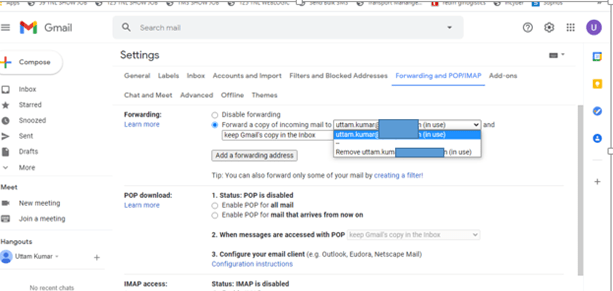
Your Can also Remove this forward email id any time by just cliking on email id and select remove ..see below picture

See Practical Video here

[End of the configuration]

HOW TO MAKE LAN CABLE COMPLETE PRACTICAL


STRIGHT CABLING IS USED TO CONNECT LAPOTP/DESKTOP TO LOCAL AREA NETWORK IN THE OFFICE

  • FOR MAKING LAN CABLE YOU REQIRE
  • LAN CAT5 OR CAT6 CABLE ( IT IS 4 PAIR UTP CABLE )
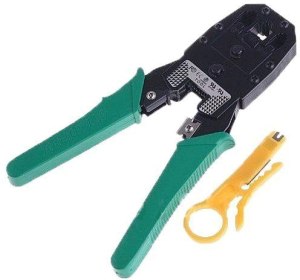
  • CRIMPING TOOLS TO CRIPM RJ45 CONNECTOR
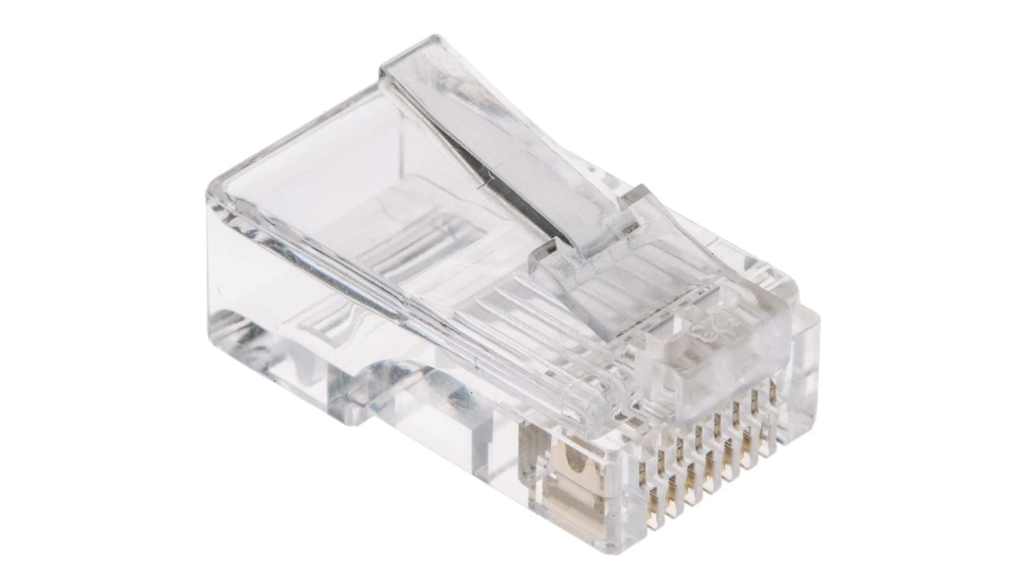
  • TWO RJ 45 CONNECTOR TO CRIMP BOTH SIDE IN A CABLE

CLOUR SEQUENCE

BROWN

BROWN WHITE

GREEN

BLUE WHITE

BLUE

GREEN WHITE

ORANGE

ORANGE WHITE

BOTH SIDE SHOULD BE IN SAME SEQUENCE

WHEN YOU INSERT THIS SEQUENCE IN THE CONNECTOR, ALWAYS YOUR CONNECTOR LOCK IS UPPER SIDE.

ALL YOU CAN SEE PRACTICAL IN THIS VIDEO

Activate windows 10 pro


Step – 1

Connect Your PC/Laptop to the Internet

Step – 2

Type cmd in search box of start button

You will find CMD OPTION

Right lick on cmd and click Run as administrator

Option will ask yes / no option about run

click yes

Step -3

Command Prompt Displayed

Type and run all three command one by one written below

slmgr /ipk W269N-WFGWX-YVC9B-4J6C9-T83GX

PRESS ENTER

slmgr /skms kms8.msguides.com

PRESS ENTER

slmgr /ato

PRESS ENTER

SEE COMPLETE PRACTICAL HERE AND DO ACTIVATION

CLICK HERE TO SEE ALL PRACTICAL STEPS

activate office 2010

Office 2010 Activation

Are you facing Activation Message Every time you open document in your office 2010.

Here are the Step to Resolve to Activate your Office 2010

Follow Steps

Click on Program Files or Program File (x86)

Go To Common Files

Click on Microsoft Shared Folder OfficeSoftwareProtectionPlatform Option

Right Click on OSPPREARM And select RUN as Administrator

Your Office 2010 Activated you can check.

You Can also do activation watching this youtube video