Category Archives: Technical Support
Free Technical Support All Over the World . Tell Your Computer Laptop Issues, Chat Connect Remotely and Get Resolution
Download Political Science Previous Year/Month Question Paper Bihar Board -April
Download Political Science Previous Year/Month Question Paper Bihar Board -March
Download Political Science Previous Year/Month Question Paper Bihar Board -February
How to Activate Microsoft Office 2021
Step 1
Open your cmd prompt – run as administrator

Go to Office16 folder location
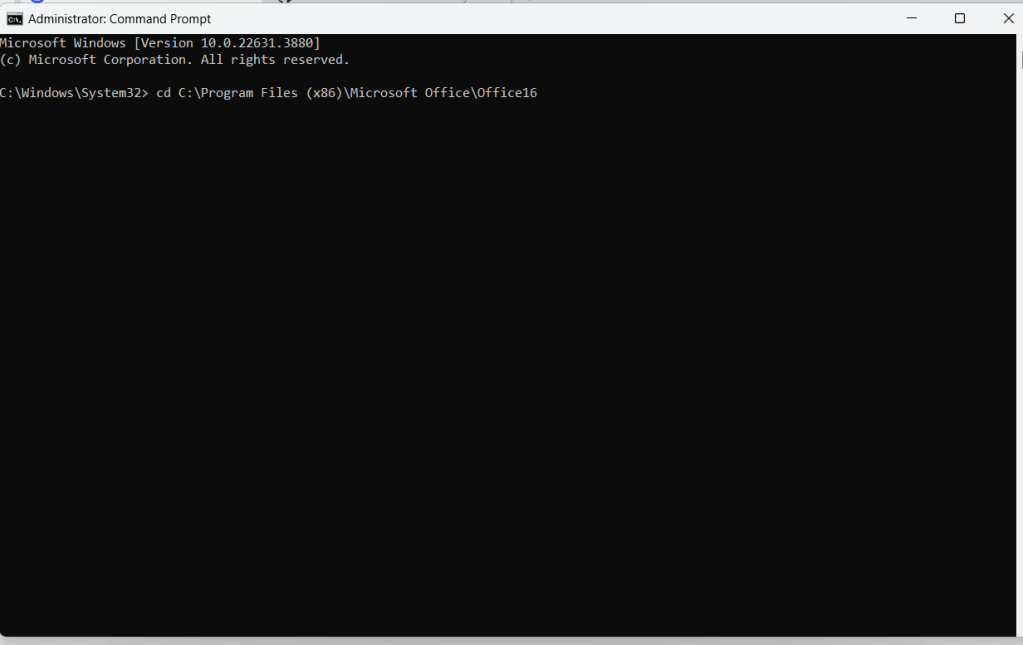
Run this command
for /f %x in ('dir /b ..\root\Licenses16\ProPlus2021VL_KMS*.xrm-ms') do cscript ospp.vbs /inslic:"..\root\Licenses16\%x"


after that

Run this

cscript ospp.vbs /setprt:1688
cscript ospp.vbs /unpkey:6F7TH >nul
cscript ospp.vbs /inpkey:FXYTK-NJJ8C-GB6DW-3DYQT-6F7TH
cscript ospp.vbs /sethst:e8.us.to
cscript ospp.vbs /act
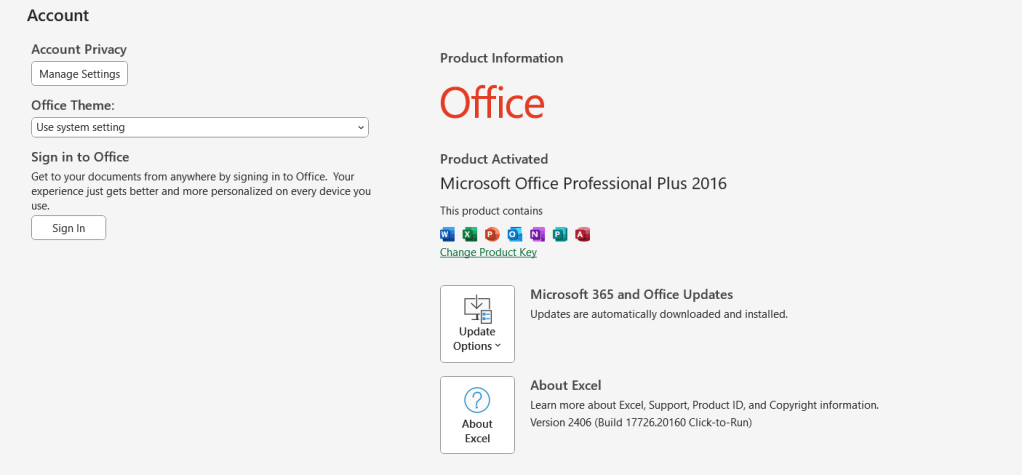
You will see activation successful as
Ready Made USB Bootable for Windows 10/11 Installation

Price 549/-
How to Activate Microsoft Office 2016
Activation Using KMS Command
Method 1
After Complete installation of Office 2016 You need to run some command in command prompt.
Type CMD in Search box
Right Click on CMD

Go to Command Prompt and cd to you ms office installation directory

Type Following Command one by one
cscript ospp.vbs /inpkey:XQNVK-8JYDB-WJ9W3-YJ8YR-WFG99
cscript ospp.vbs /unpkey:BTDRB >nul
cscript ospp.vbs /unpkey:KHGM9 >nul
cscript ospp.vbs /unpkey:CPQVG >nul
cscript ospp.vbs /sethst:kms8.msguides.com
cscript ospp.vbs /setprt:1688
cscript ospp.vbs /act
If you see the error 0xC004F074, it means that your internet connection is unstable or the server is busy. Please make sure your device is online and try the command “act” again until you succeed.
If you are getting error and unable to finish activation then follow STEP 2
Method 2 – Step 1
Go to Ms office installation directory using cmd prompt
C:\Windows\system32>cd C:\Program Files (x86)\Microsoft Office\Office16 (this path may be deferent in your system so make sure your office installation path)
C:\Program Files\Microsoft Office\Office16>cscript ospp.vbs /inslic:”..\root\Licenses16\ProPlusVL_KMS_Client-ppd.xrm-ms”
C:\Program Files\Microsoft Office\Office16>cscript ospp.vbs /inslic:”..\root\Licenses16\ProPlusVL_KMS_Client-ul-oob.xrm-ms”
C:\Program Files\Microsoft Office\Office16>cscript ospp.vbs /inslic:”..\root\Licenses16\ProPlusVL_KMS_Client-ul.xrm-ms”
C:\Program Files\Microsoft Office\Office16>cscript ospp.vbs /inpkey:XQNVK-8JYDB-WJ9W3-YJ8YR-WFG99
Method 2 – Step 2
cscript ospp.vbs /inpkey:XQNVK-8JYDB-WJ9W3-YJ8YR-WFG99
cscript ospp.vbs /unpkey:BTDRB >nul
cscript ospp.vbs /unpkey:KHGM9 >nul
cscript ospp.vbs /unpkey:CPQVG >nul
cscript ospp.vbs /sethst:kms8.msguides.com
cscript ospp.vbs /setprt:1688
cscript ospp.vbs /act
Method 3
Create new text document on notepad
copy this batch file content
@echo off
title Activate Microsoft Office 2016 (ALL versions) for FREE – MSGuides.com&cls&echo =====================================================================================&echo #Project: Activating Microsoft software products for FREE without additional software&echo =====================================================================================&echo.&echo #Supported products:&echo – Microsoft Office Standard 2016&echo – Microsoft Office Professional Plus 2016&echo.&echo.&(if exist “%ProgramFiles%\Microsoft Office\Office16\ospp.vbs” cd /d “%ProgramFiles%\Microsoft Office\Office16”)&(if exist “%ProgramFiles(x86)%\Microsoft Office\Office16\ospp.vbs” cd /d “%ProgramFiles(x86)%\Microsoft Office\Office16″)&(for /f %%x in (‘dir /b ..\root\Licenses16\proplusvl_kms*.xrm-ms’) do cscript ospp.vbs /inslic:”..\root\Licenses16\%%x” >nul)&(for /f %%x in (‘dir /b ..\root\Licenses16\proplusvl_mak*.xrm-ms’) do cscript ospp.vbs /inslic:”..\root\Licenses16\%%x” >nul)&echo.&echo ============================================================================&echo Activating your Office…&cscript //nologo ospp.vbs /setprt:1688 >nul&cscript //nologo ospp.vbs /unpkey:WFG99 >nul&cscript //nologo ospp.vbs /unpkey:DRTFM >nul&cscript //nologo ospp.vbs /unpkey:BTDRB >nul&cscript //nologo ospp.vbs /unpkey:CPQVG >nul&set i=1&cscript //nologo ospp.vbs /inpkey:XQNVK-8JYDB-WJ9W3-YJ8YR-WFG99 >nul||goto notsupported
:skms
if %i% GTR 10 goto busy
if %i% EQU 1 set KMS=kms7.MSGuides.com
if %i% EQU 2 set KMS=ms8.us.to
if %i% EQU 3 set KMS=ms9.us.to
if %i% GTR 3 goto ato
cscript //nologo ospp.vbs /sethst:%KMS% >nul
:ato
echo ============================================================================&echo.&echo.&cscript //nologo ospp.vbs /act | find /i “successful” && (echo.&echo ============================================================================&echo.&echo #My official blog: MSGuides.com&echo.&echo #How it works: bit.ly/kms-server&echo.&echo #Please feel free to contact me at msguides.com@gmail.com if you have any questions or concerns.&echo.&echo #Please consider supporting this project: donate.msguides.com&echo #Your support is helping me keep my servers running 24/7!&echo.&echo ============================================================================&choice /n /c YN /m “Would you like to visit my blog [Y,N]?” & if errorlevel 2 exit) || (echo The connection to my KMS server failed! Trying to connect to another one… & echo Please wait… & echo. & echo. & set /a i+=1 & goto skms)
explorer “http://MSGuides.com”&goto halt
:notsupported
echo ============================================================================&echo.&echo Sorry, your version is not supported.&echo.&goto halt
:busy
echo ============================================================================&echo.&echo Sorry, the server is busy and can’t respond to your request. Please try again.&echo.
:halt
pause >nul
save as file name filename.bat
Example :- officeactivate.bat

Run the batch file as administrator.
Activation Done

Outlook Not Searching Recent Emails- Complete issue Fixed
In December 2021 There is an issue facing by the System Administrator all over the world in Outlook Email Searching.
Problem: When You search Email, your outlook search only previous day email and the same day email not including in the index.
Indexing service stopped working and After Restarting the service Email index including the all email but next day again your email not searching for the same day.
After Rebuilding index Problem Solved but After Shutdown and When using outlook in the next day the problem remain same, Email not searching recent emails. Outlook Searching only till yesterday email when user done the rebuilding index.
To Solve all these issue we have to do the following as per community discussion and engineers experience. This is a global issue and most of the system administrators/IT persons requested to Microsoft to fix this.
Temporary Solution:
We all discussed in the community and do practical and observed that there is an update released by the Microsoft in windows 10 and 11 in the month of December 2021 between 14th Dec to 30 Dec.
This updates was related to the security fix so you need to remove that updates and restart the system and after that restart the Windows Searching Service.
We have found that problem is fixed after the uninstall of the updates.
Updates Name : release date December 14, 2021— KB5008212
If You found this updates in your list do it uninstall to fix this issues.
See all the discussions for windows 10 and windows 11 updates with practical.
How To Create Group in Outlook pop3/imap account
Open Outlook
Click Home Menu and Click Address Book

Address Book will be open
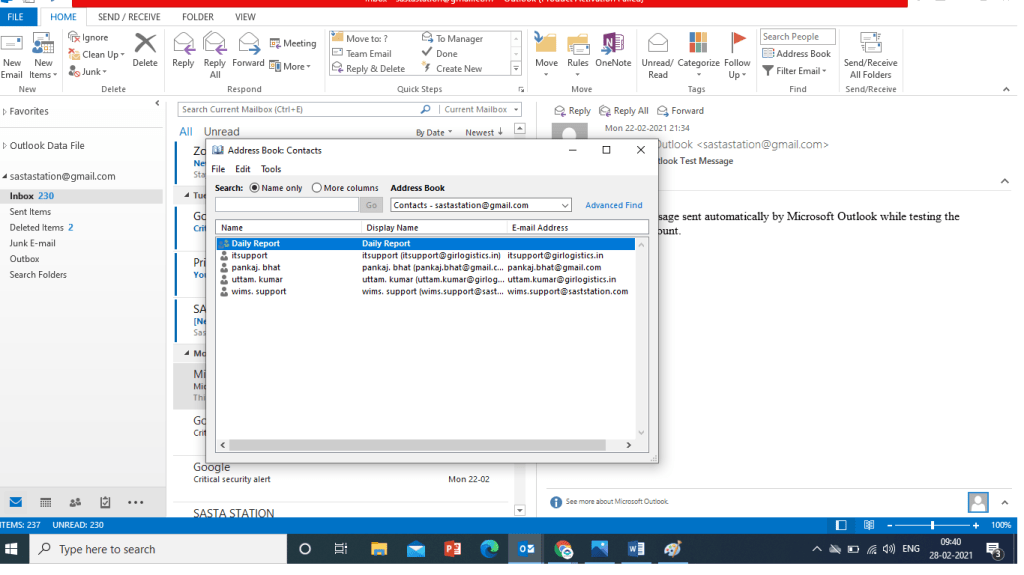
Click on file – Click New Entry
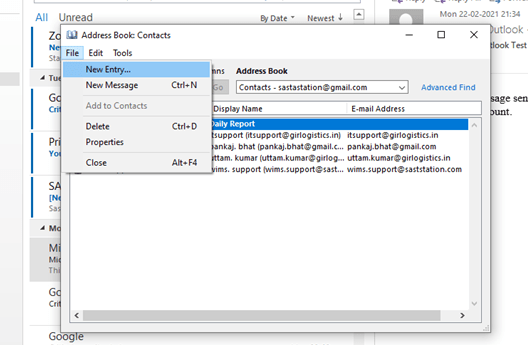
Select New Contact Group Option
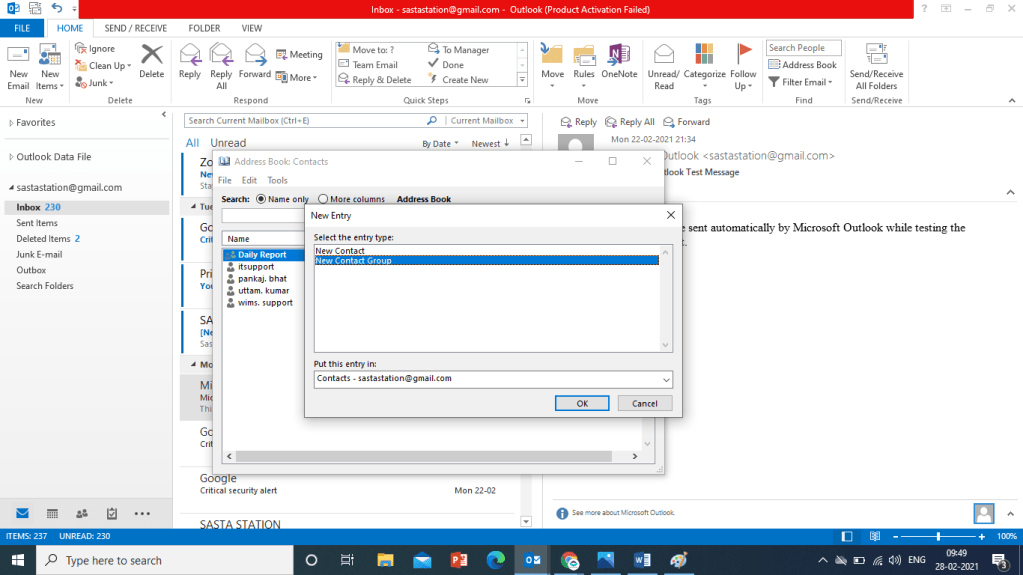
Click New Contact Group and Click OK

Type Group Name that you want to Create
Click Add Member Button to Add member Email address
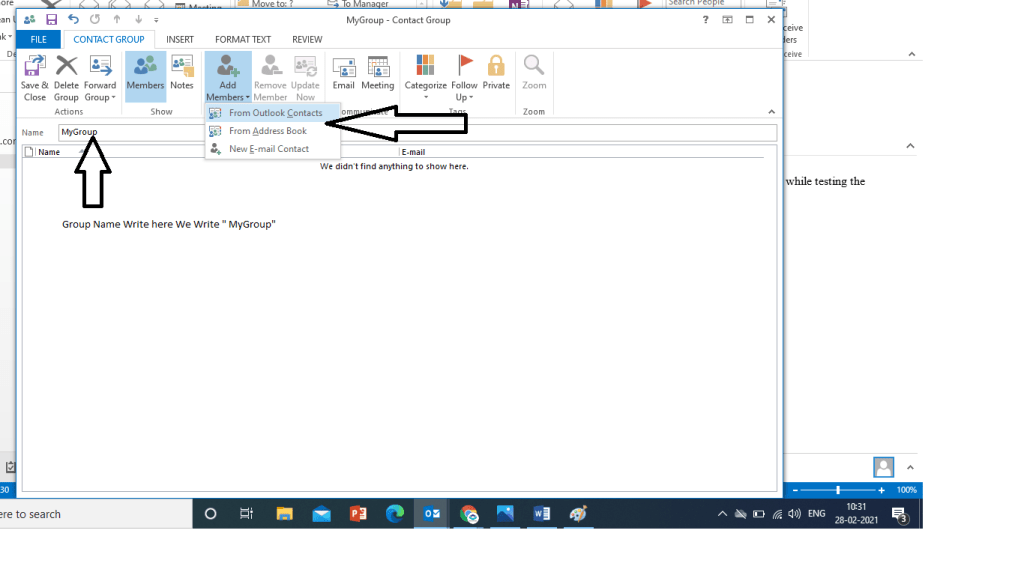
We have written Group name as “MyGroup” as can see in the picture
Click Add Member and Select One option from Three
- From Outlook Contact
- From Address Book
- New Email Contact
If You have Saved Contact Click Second Option , Select New Email Contact if you want to create new.
It is Better to Save All you Email in a Excel or Word Document then Paste all Email in One Click.
For Example We Make a Document of all Email that we want to add in one Group.

Just Like this Type all email in one group and Copy all Email to Paste There in Group Creation Dialog box
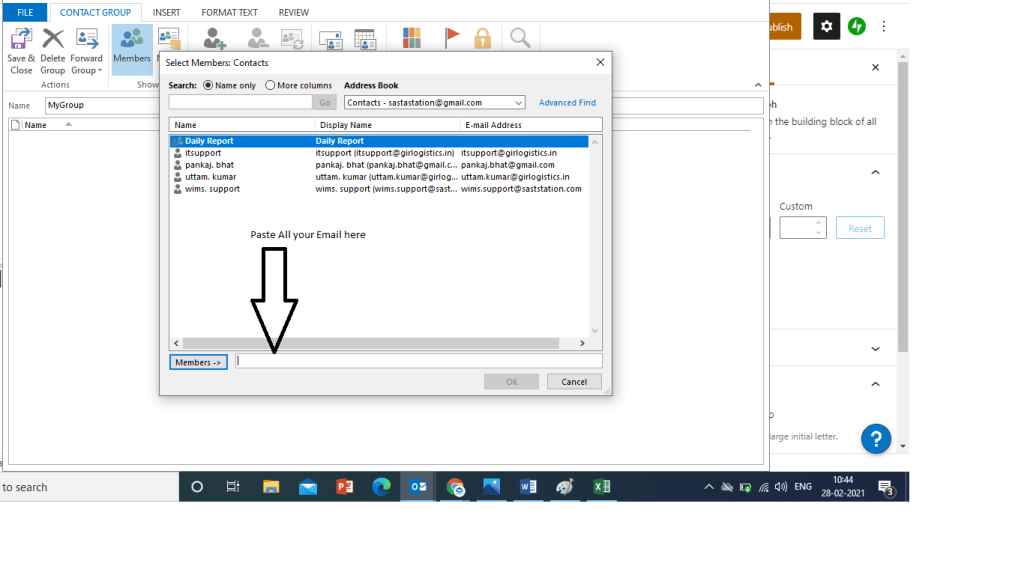
Copy All email from document and paste here and Click OK
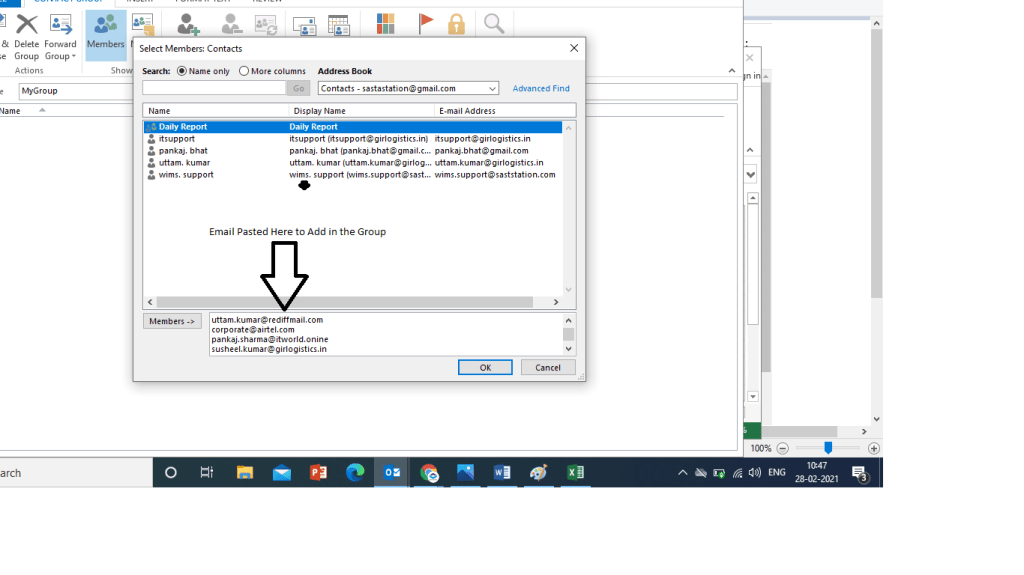
All Email Added in the Group
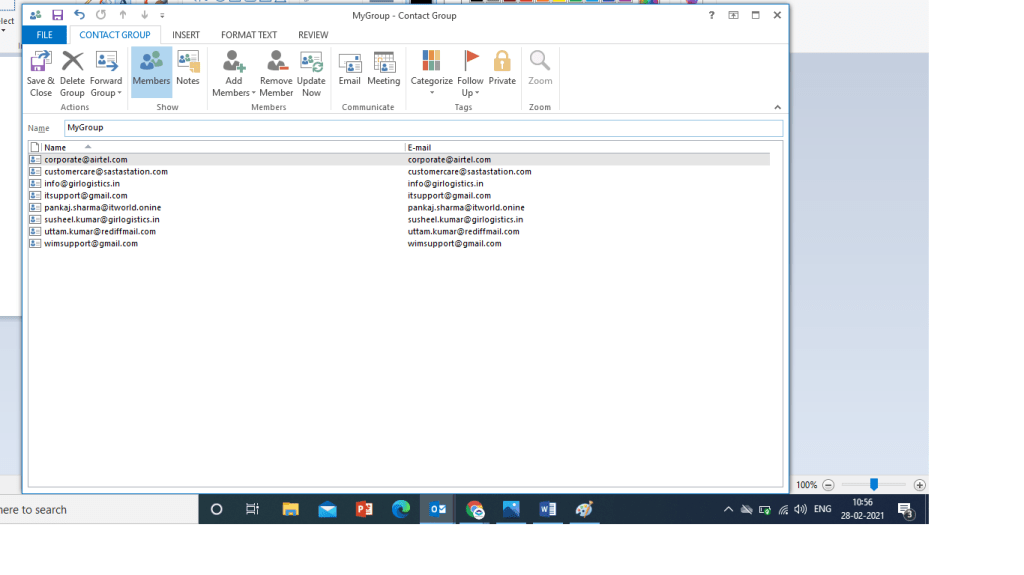
You can see here all email added in the group
Click Save add Close to finish
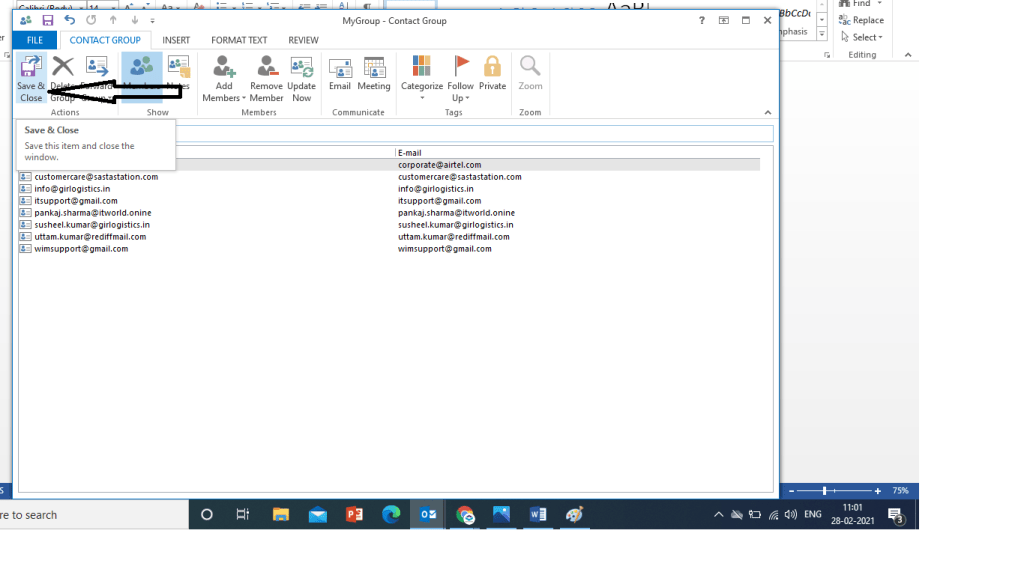
Now You can Send Email to MyGroup by Composing email. See Below image
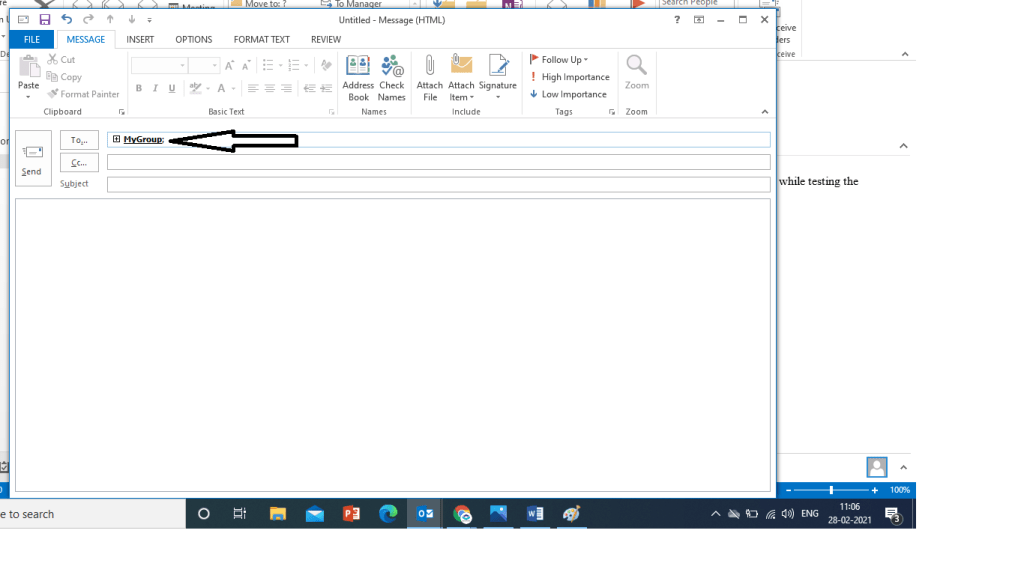
Type Group name and write email to send
You Can Also See All Practical video of How to Create Group
Windows Explorer has stopped working & System Restarting error Fixed
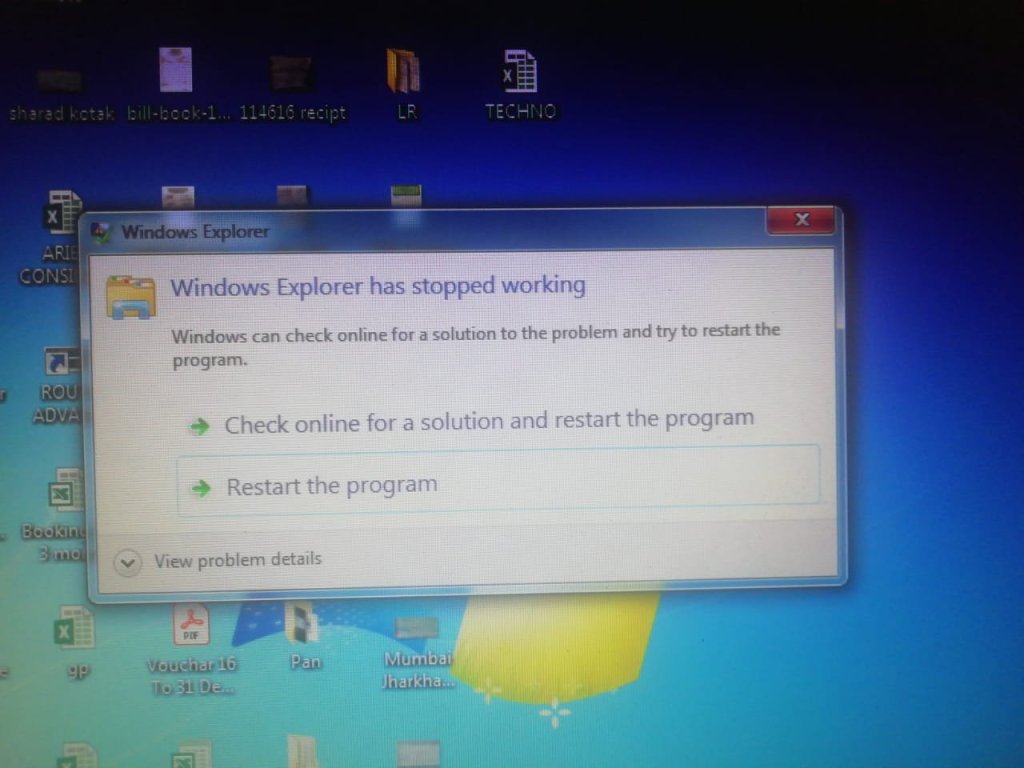
System Display the message ” windows Explorer has stopped working” as shown below
After this message system restarted even system is not stay on to think what should we do for this problem.
This Issue come mostly in Windows 7
SOLUTION
You have the fast solution of this issue without R & D
Boot this system in safe mode
Just restart your computer manually by pressing restart button , keep pressing F8 till the list of option comes on your screen.
Select the Option Safe Mode and press Enter. Now you system is starting in safe mode.
Click on Start button
Type System Restore in search box
Open System Restore option
Click Next
Click Check box “show more restore point”
Select Most Recent Date restore point
Click next and finish (do Restore operation)
After restoration done your system will be restarted automatically
After restarting there is one message displayed on desktop ” Restore Complete”
Now Your Problem Resolved
Note: PLEASE NOT BEFORE RESTORATION.
Try to select date & time before this issue comes
Make backup of any important installed application or software because after the previous date restoration your system ready in same state as your selected date and time.
After Restoring Only your system file or application may change. No data/your file will be deleted in this restore process.
 COMPUTER STATION