Open Outlook
Click Home Menu and Click Address Book

Address Book will be open
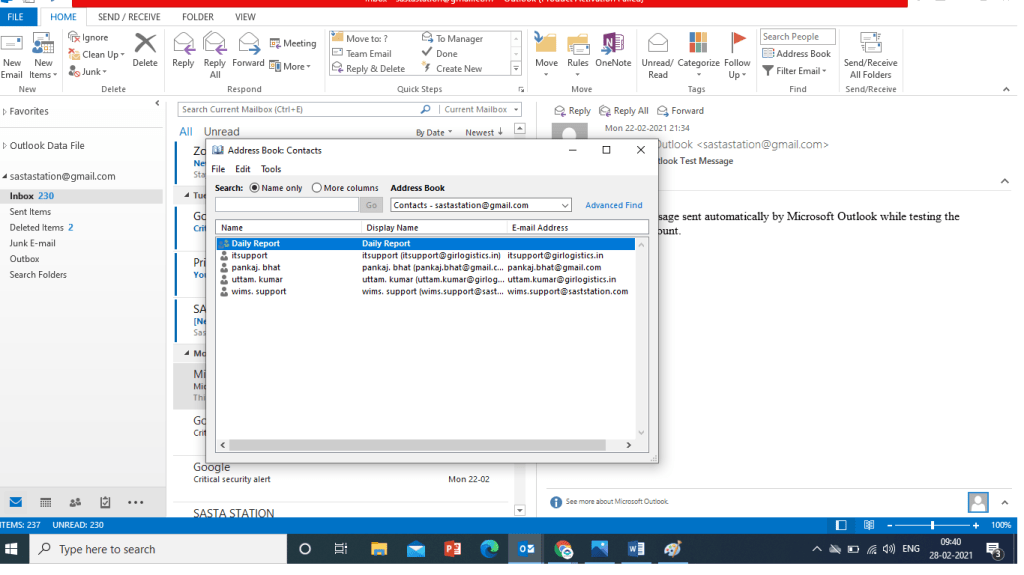
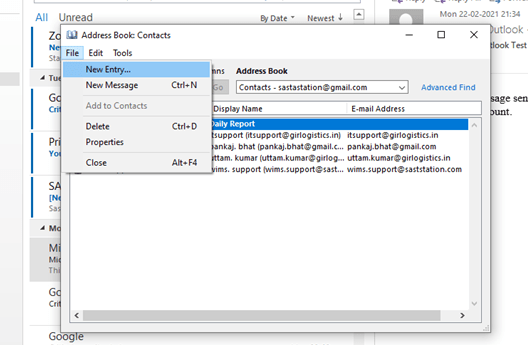
Click on file – Click New Entry
Select New Contact Group Option
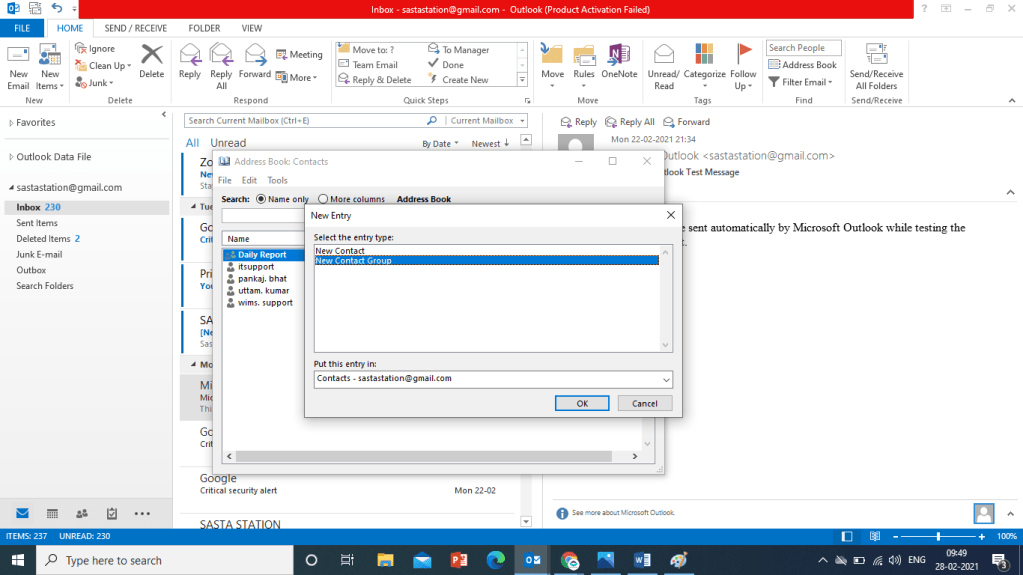
Click New Contact Group and Click OK

Type Group Name that you want to Create
Click Add Member Button to Add member Email address
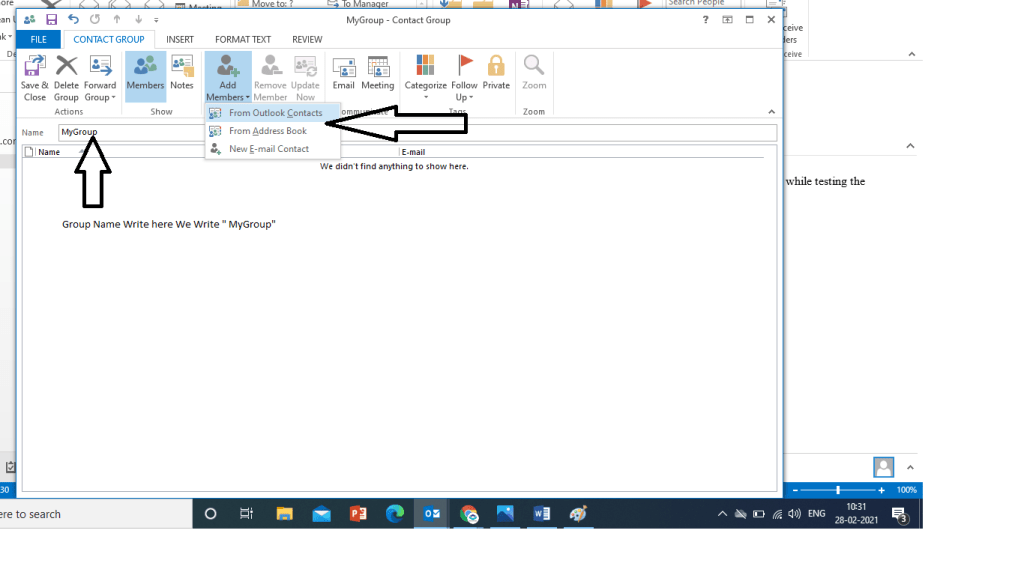
We have written Group name as “MyGroup” as can see in the picture
Click Add Member and Select One option from Three
- From Outlook Contact
- From Address Book
- New Email Contact
If You have Saved Contact Click Second Option , Select New Email Contact if you want to create new.
It is Better to Save All you Email in a Excel or Word Document then Paste all Email in One Click.
For Example We Make a Document of all Email that we want to add in one Group.

Just Like this Type all email in one group and Copy all Email to Paste There in Group Creation Dialog box
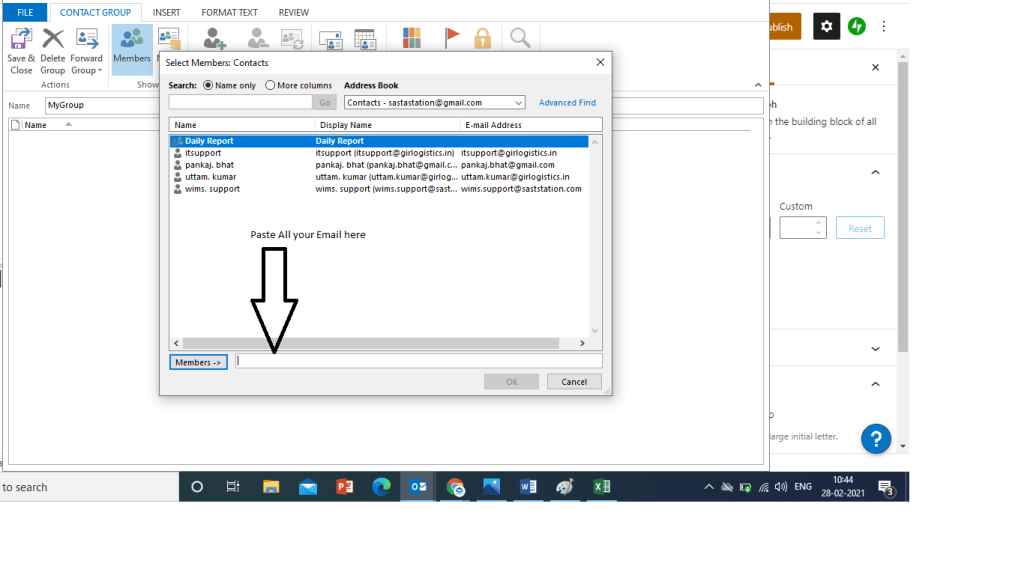
Copy All email from document and paste here and Click OK
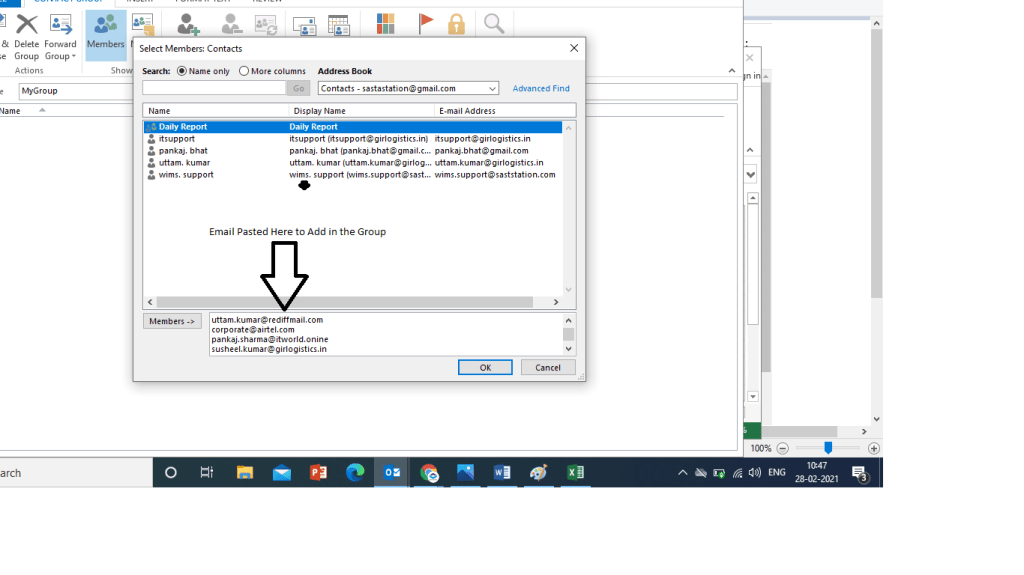
All Email Added in the Group
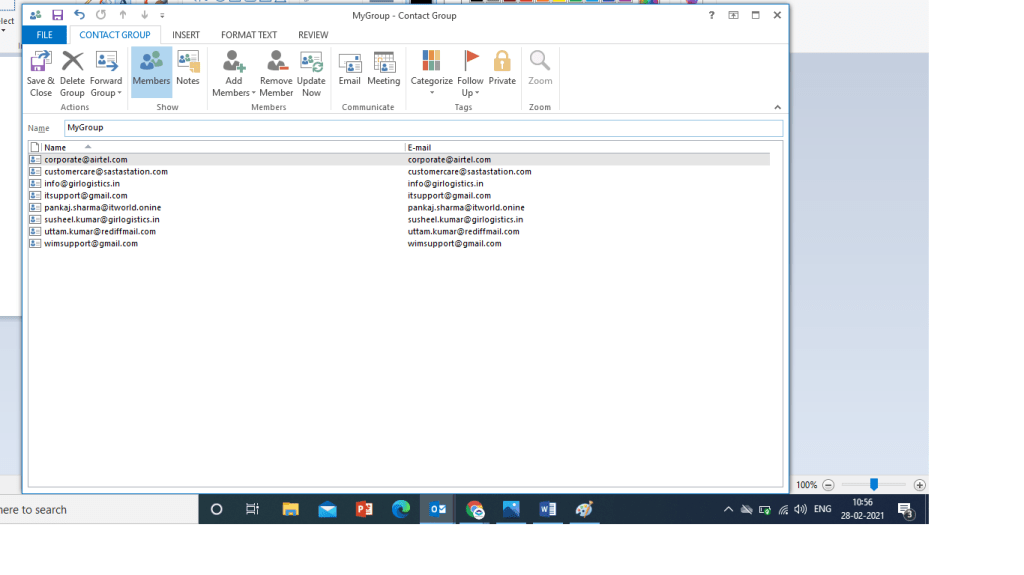
You can see here all email added in the group
Click Save add Close to finish
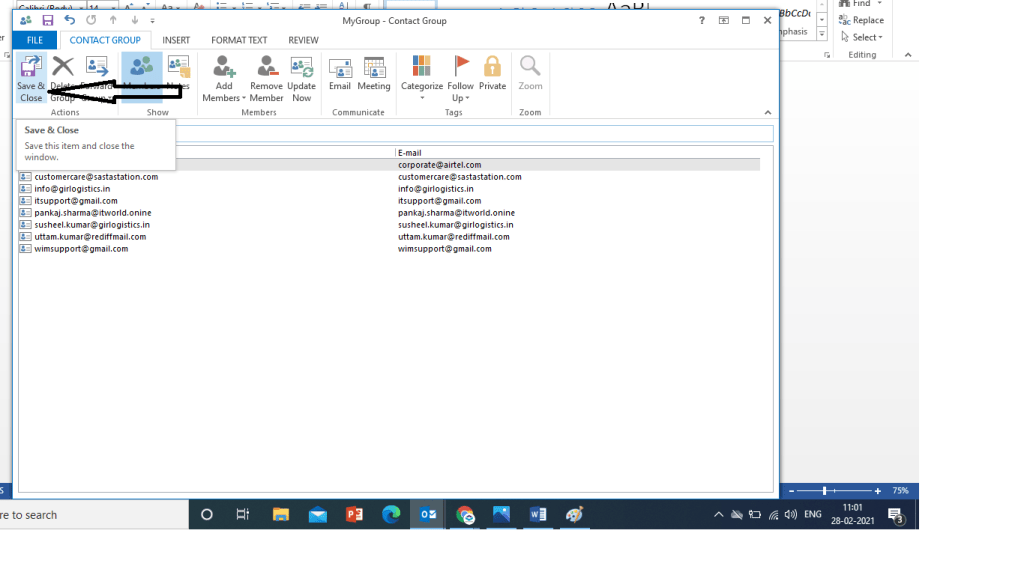
Now You can Send Email to MyGroup by Composing email. See Below image
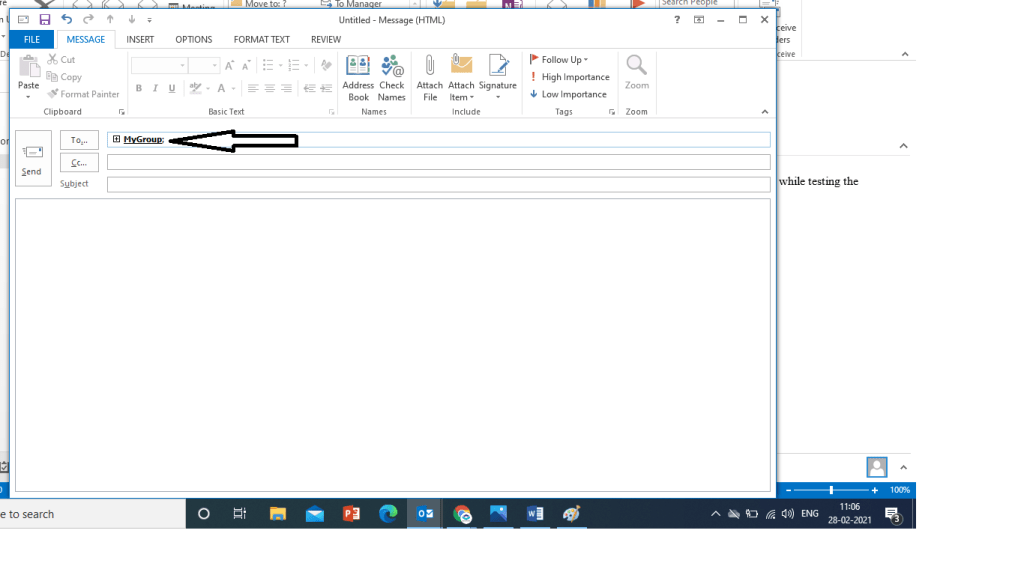
Type Group name and write email to send
You Can Also See All Practical video of How to Create Group
 COMPUTER STATION