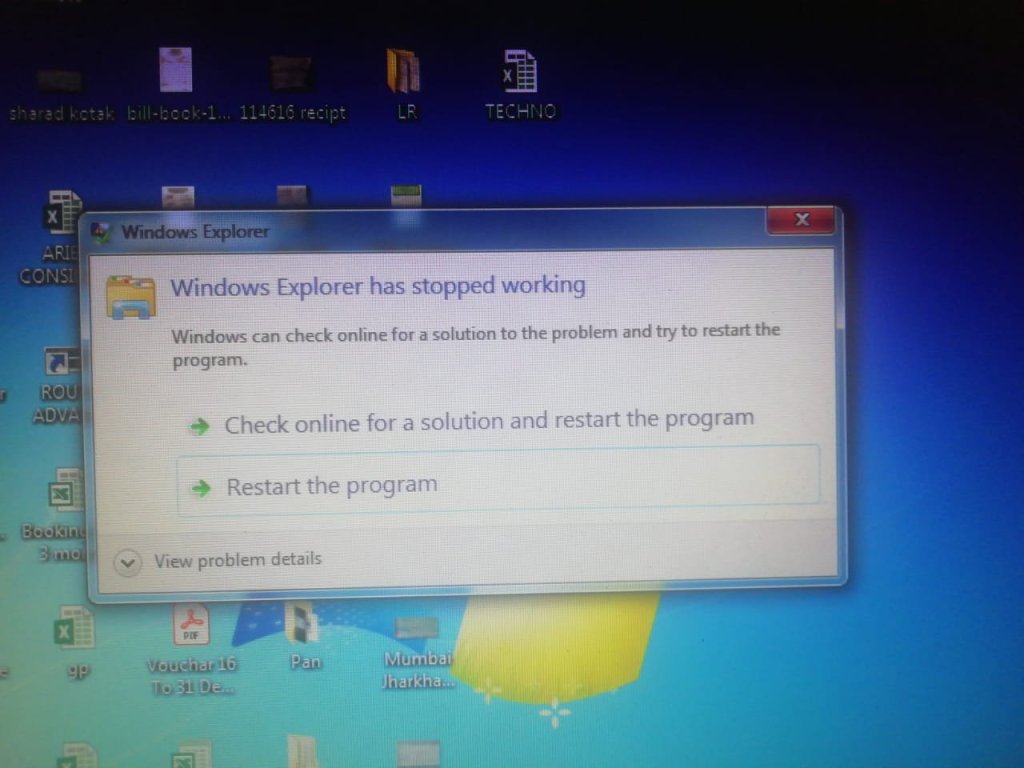
System Display the message ” windows Explorer has stopped working” as shown below
After this message system restarted even system is not stay on to think what should we do for this problem.
This Issue come mostly in Windows 7
SOLUTION
You have the fast solution of this issue without R & D
Boot this system in safe mode
Just restart your computer manually by pressing restart button , keep pressing F8 till the list of option comes on your screen.
Select the Option Safe Mode and press Enter. Now you system is starting in safe mode.
Click on Start button
Type System Restore in search box
Open System Restore option
Click Next
Click Check box “show more restore point”
Select Most Recent Date restore point
Click next and finish (do Restore operation)
After restoration done your system will be restarted automatically
After restarting there is one message displayed on desktop ” Restore Complete”
Now Your Problem Resolved
Note: PLEASE NOT BEFORE RESTORATION.
Try to select date & time before this issue comes
Make backup of any important installed application or software because after the previous date restoration your system ready in same state as your selected date and time.
After Restoring Only your system file or application may change. No data/your file will be deleted in this restore process.
 COMPUTER STATION