How to add another email address to your existing Gmail account
Open Gmail Account.

- Click on Setting Option from Top Right Corner
- Go to Account and Import TAB on TOP Row of setting
- Go to Send Email as Option and Click add another email address.
- A popup dialog box will be displayed.

Enter Name and email address
Click checkbox on “Treat as an alias. (If you do not do this then incoming mails from this email will not be received and displayed in your gmail account.
You can also set reply-to option , from which email id you want to reply
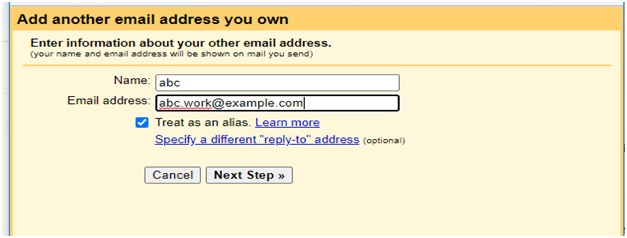
Click on Next Step Button
Setup your setup your SMTP Server, User name, password, SSL option and port numbers

Click add Account .
Now, Gmail will automatically send a verification code to the linking email.
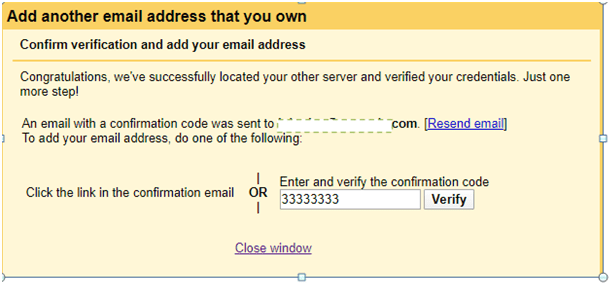
Enter code and click on verify button
After this step Gmail will update the page and you can see linked email id in the send message field
You can add maximum 99 email address in your Gmail account and operation from the same Gmail.
You can Create Email from your added email from here.
[END]
 COMPUTER STATION